
Warehouse Location Management
PrepBusiness lets you create named storage locations (bins, areas, shelves) within your warehouse and assign inventory to them. Location management is a paid add-on, so the controls below only appear once it is enabled on your account. You can assign locations from the web portal, or scan items onto shelves with the Putaway workflow on a handheld device.
Setting Up Locations
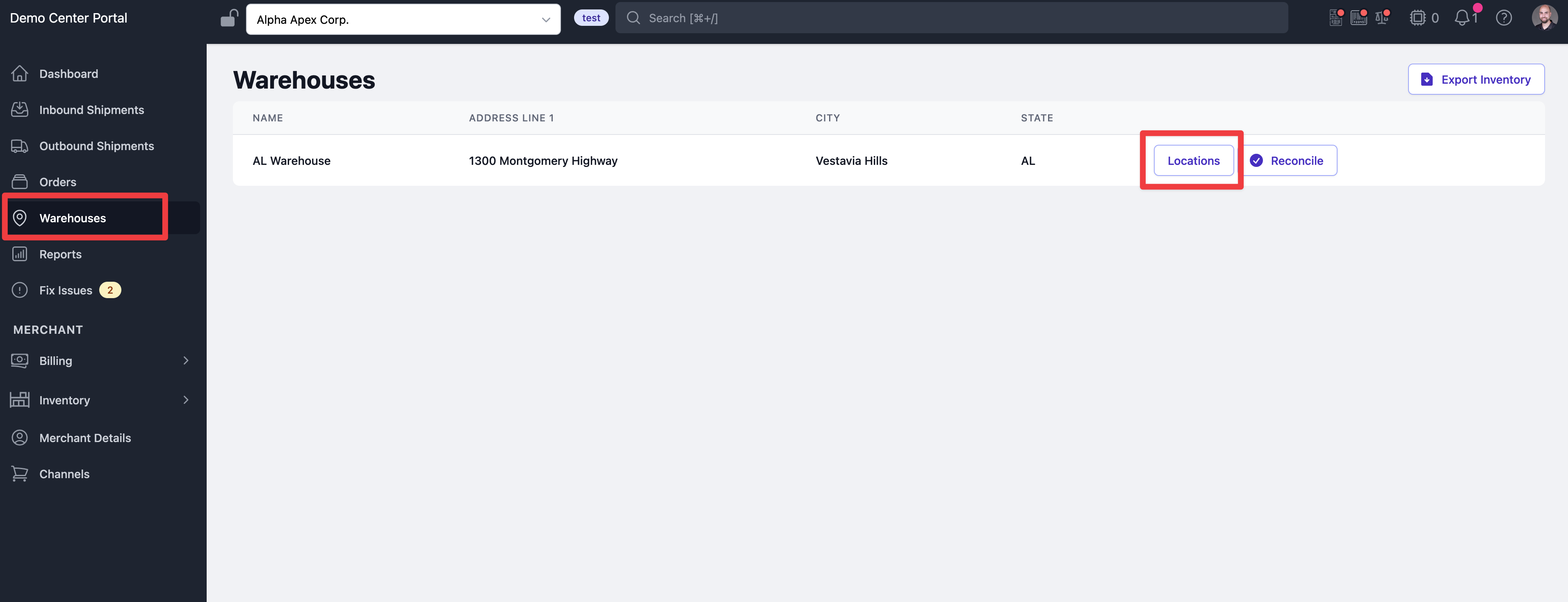
Navigate to Warehouses in the left sidebar, then click the Locations button next to your warehouse. If you do not see that button, your account does not have location management enabled.
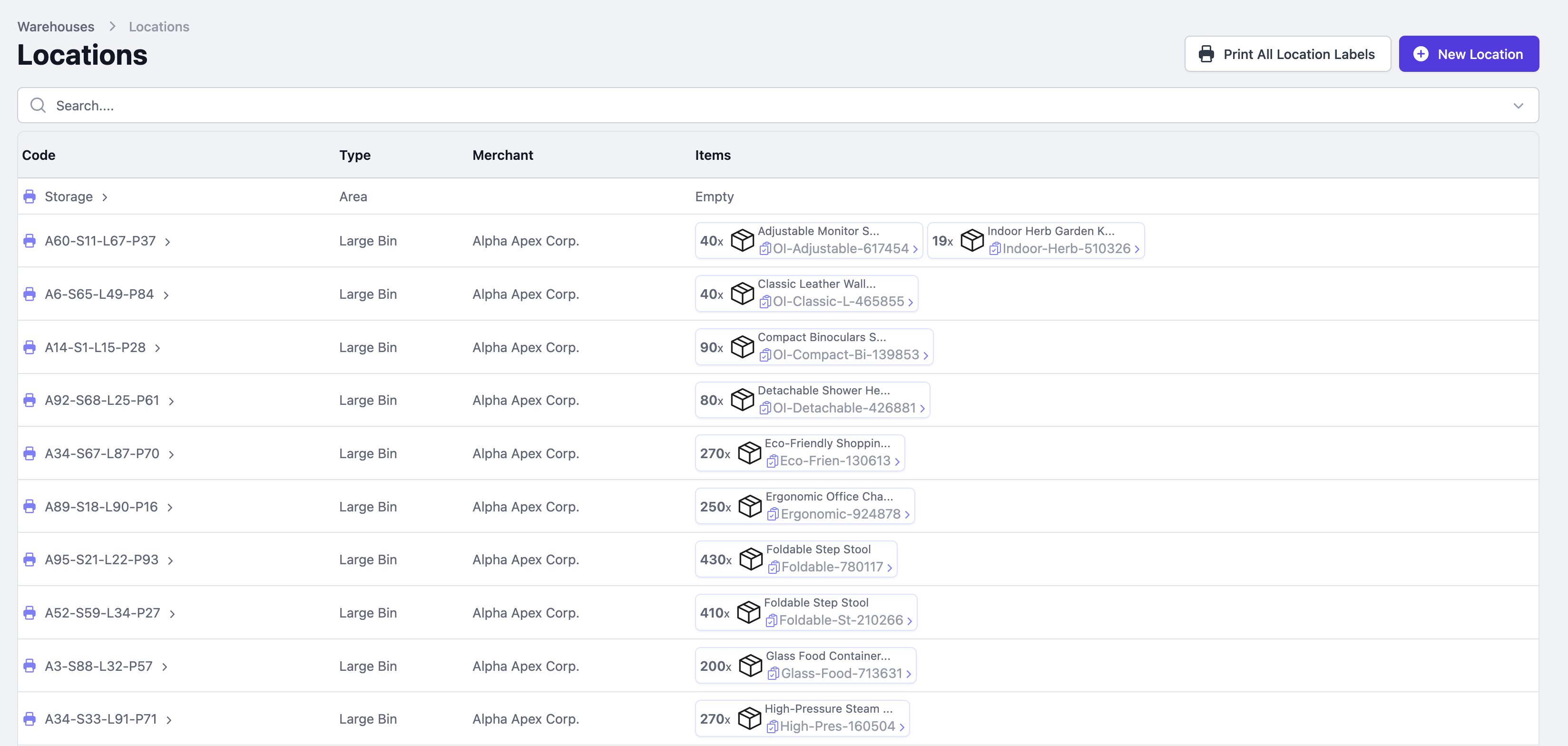
The Locations page shows all locations with their code, storage type, merchant, and the items currently stored there. You can print labels for all locations using Print All Location Labels.
Creating a New Location
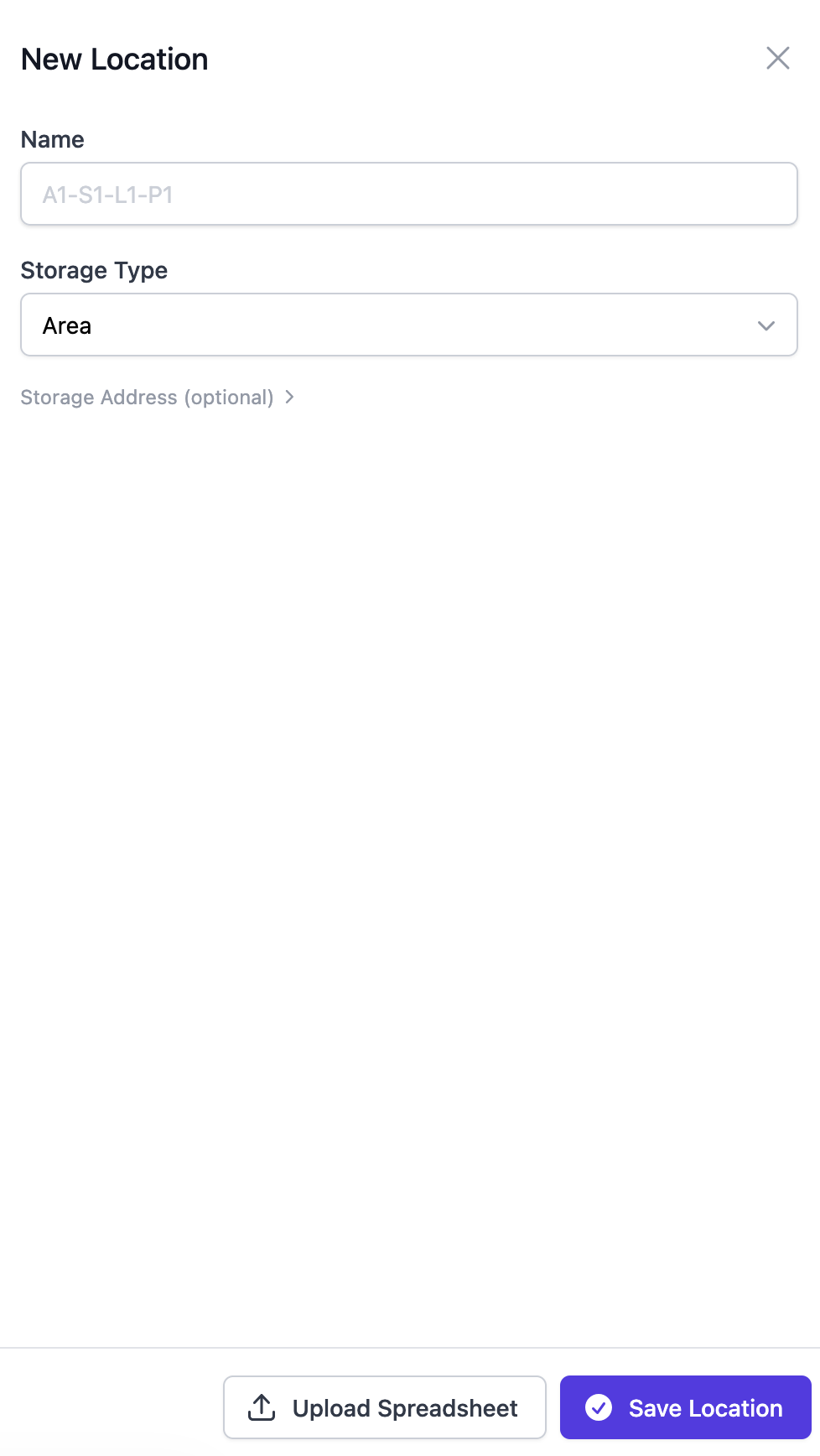
Click New Location and fill in:
- Name: a unique code for the location (e.g. A1-S1-L1-P1 for Aisle 1, Section 1, Level 1, Position 1)
- Storage Type: Area, Large Bin, etc.
You can also upload a spreadsheet to create many locations at once.
Assigning Locations During Receiving
When receiving an inbound shipment, each item row has an "Add Location" button beside "Add Cases" and "Add Unsellable". Click it to assign a storage location to the units being received.

A picker appears showing locations already storing that item at the top, and all available locations below. Select the location where the units will be stored.
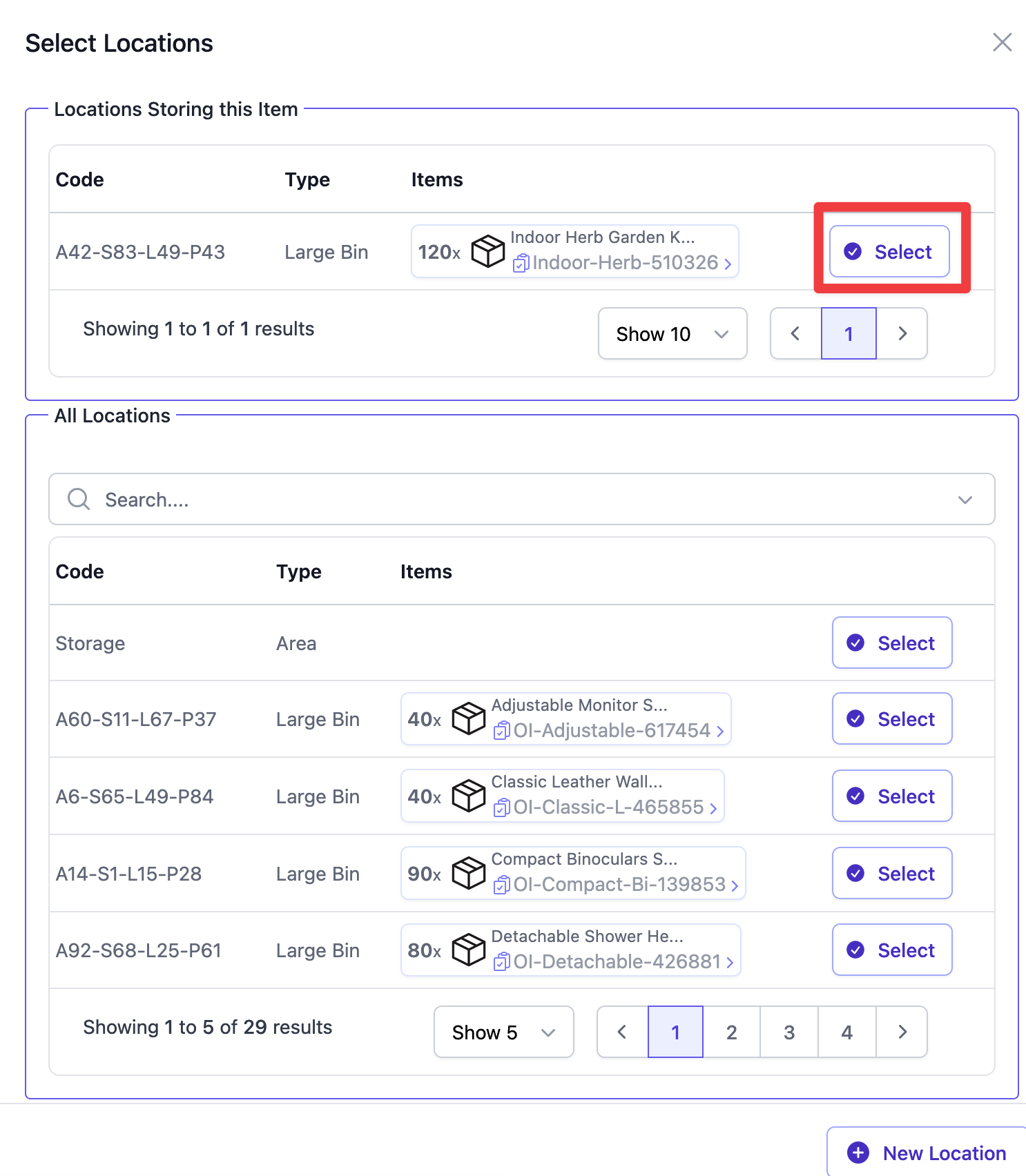
Items can be split across multiple locations by adding multiple lines with different location codes and quantities.

Viewing an Item's Locations
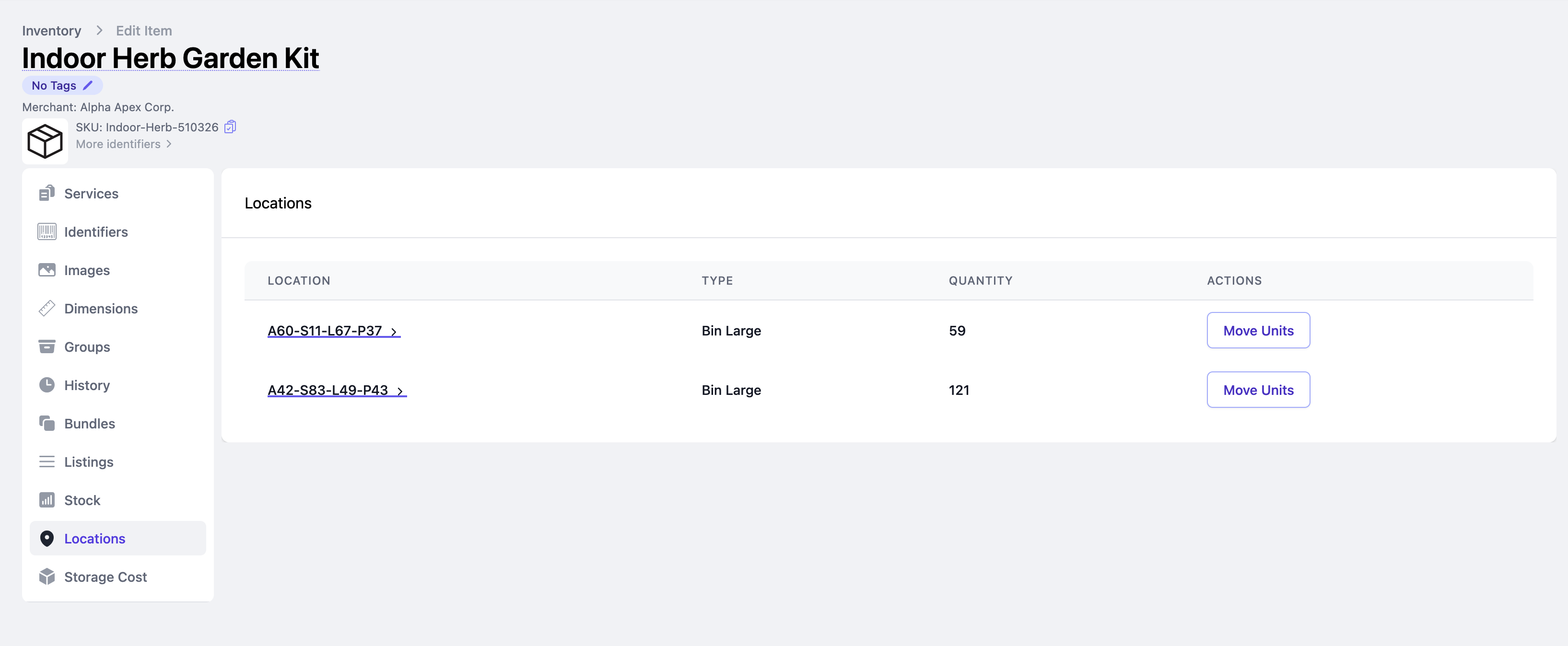
Open any inventory item and select the Locations tab to see all locations storing that item, along with the storage type and quantity at each location.
Moving Items Between Locations
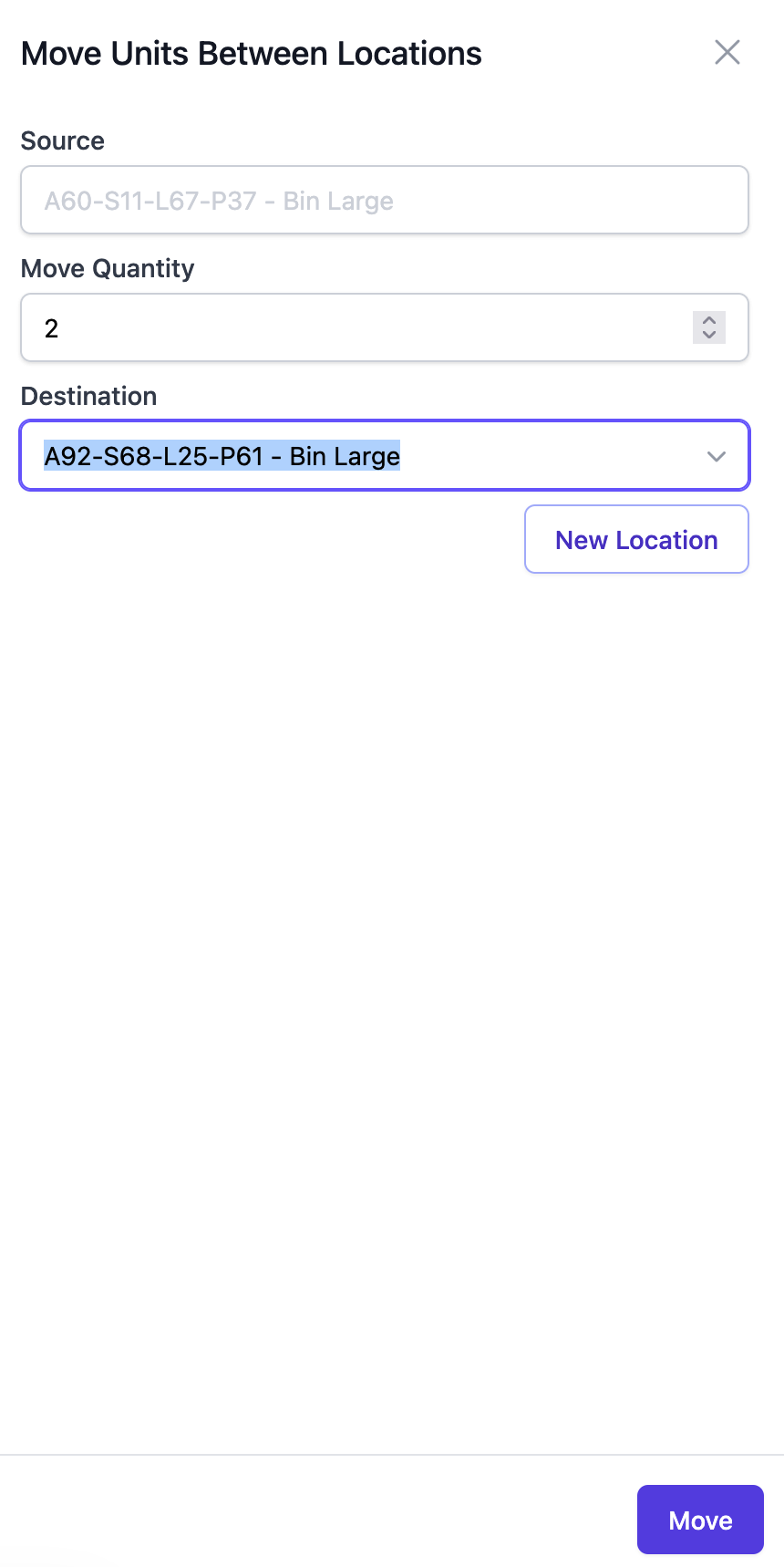
From the Locations tab on an inventory item, click Move Units next to a location. Specify the quantity to move and select the destination location, then click Move.
Putting Items Away by Scanning
If you would rather assign locations on the warehouse floor, open /staff/handheld on a handheld device or tablet, set your warehouse in Settings, and start the Putaway workflow. It lists the inbound shipments you have received, and once you open one it asks you to scan an item and then scan the location you are putting it in. Each scan records the move, so the units end up in the same place they would if you had assigned the location in the portal.