Using Bundles
Bundles allow you to produce kits or sets from component inventory items. You can save reusable bundle configurations or run one-off productions on the fly.
Understanding the Bundle Sections
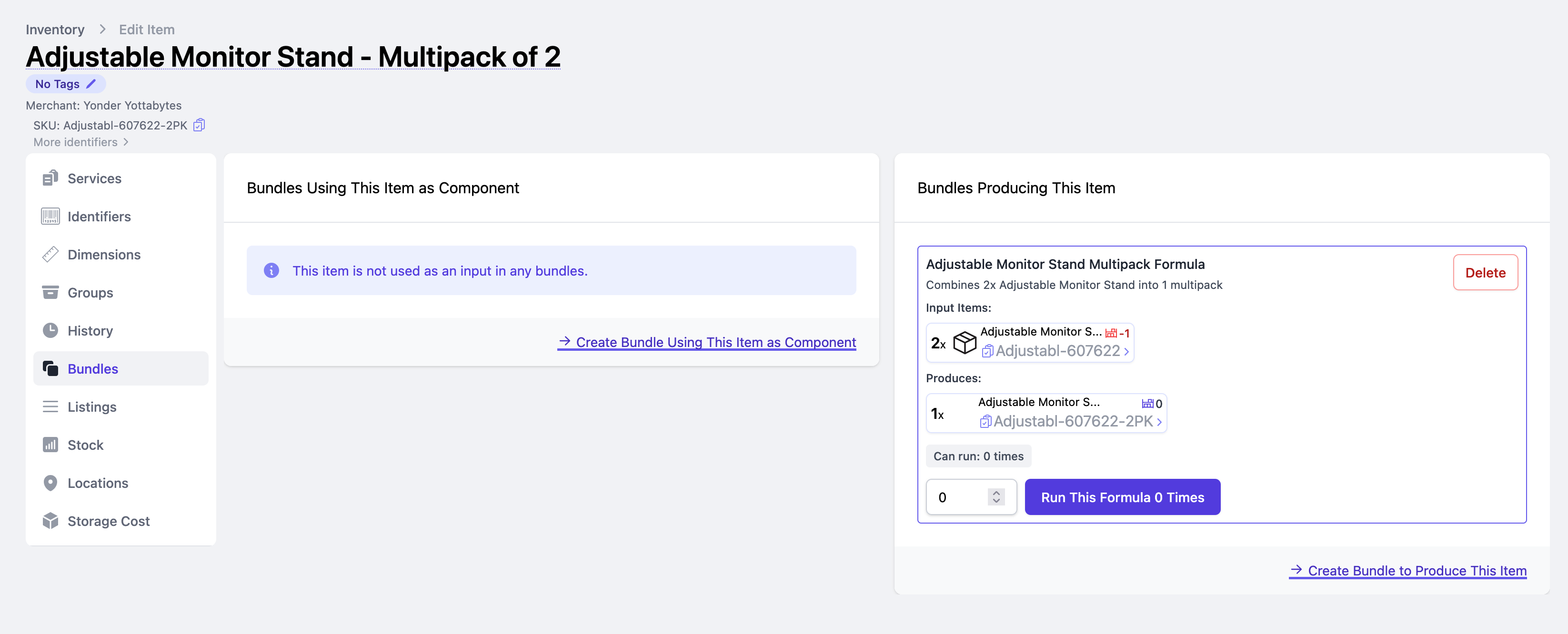
Each inventory item has two bundle sections on its Bundles tab: • Bundles Using This Item as Component: lists bundle configurations that consume this item as an input. • Bundles Producing This Item: lists bundle configurations that output this item.
Creating a Bundle Configuration
A bundle configuration defines which components are consumed (inputs) and what item is produced (output). Saved configurations can be reused each time you run a production batch.
- Open the inventory item you want to produce as a bundle.
- Go to the Bundles tab and click Create Bundle to Produce This Item. The output item will be pre-filled.
- Under Input Items, click Add Input Item and select each component. Set the quantity required per production run.
- Optionally, add a Service to automatically charge a fixed amount each time the bundle is produced.
- Click Save to save the configuration.
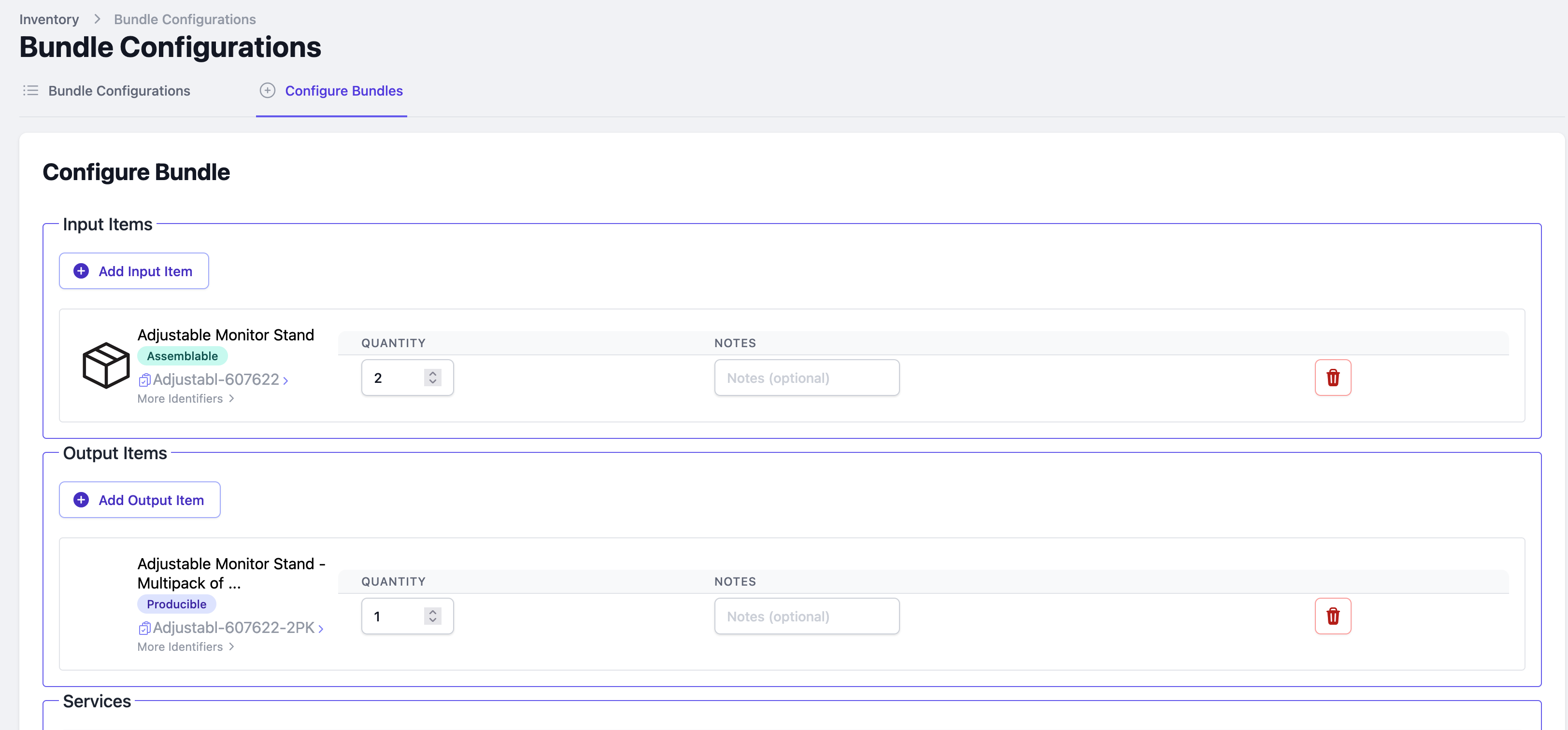
Click "Save Configuration" to save it.
Running a Bundle Production
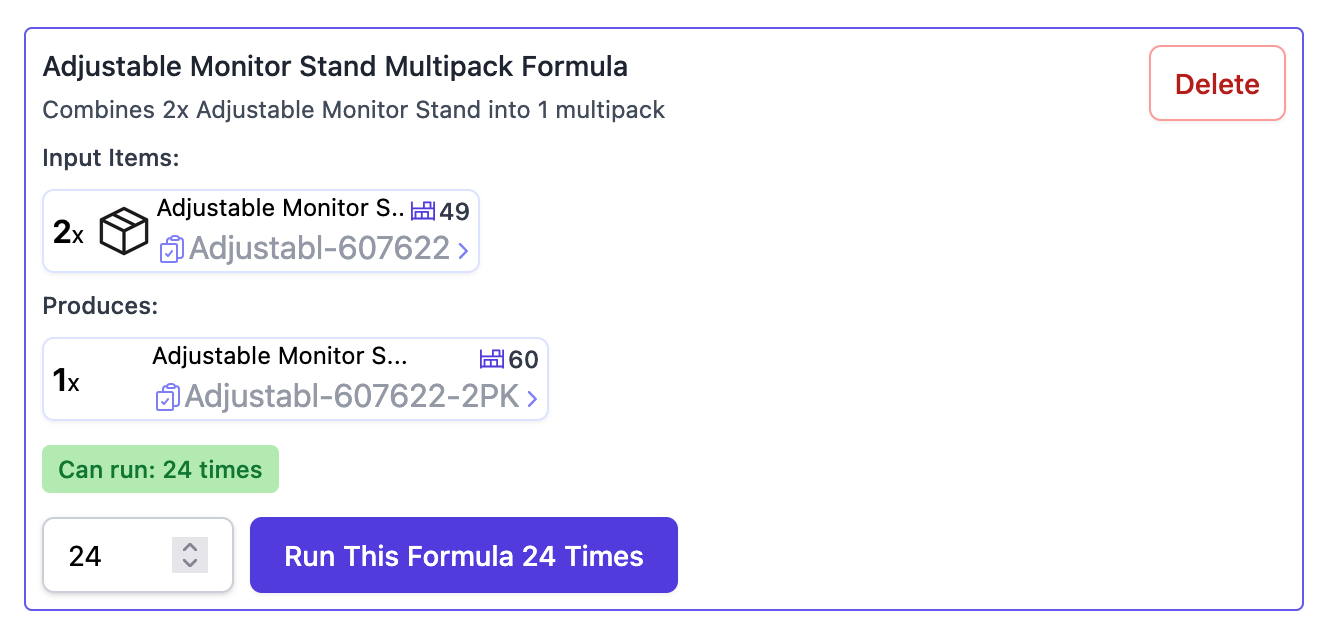
- On the bundle configuration card, enter the number of units to produce and click Run This Formula.
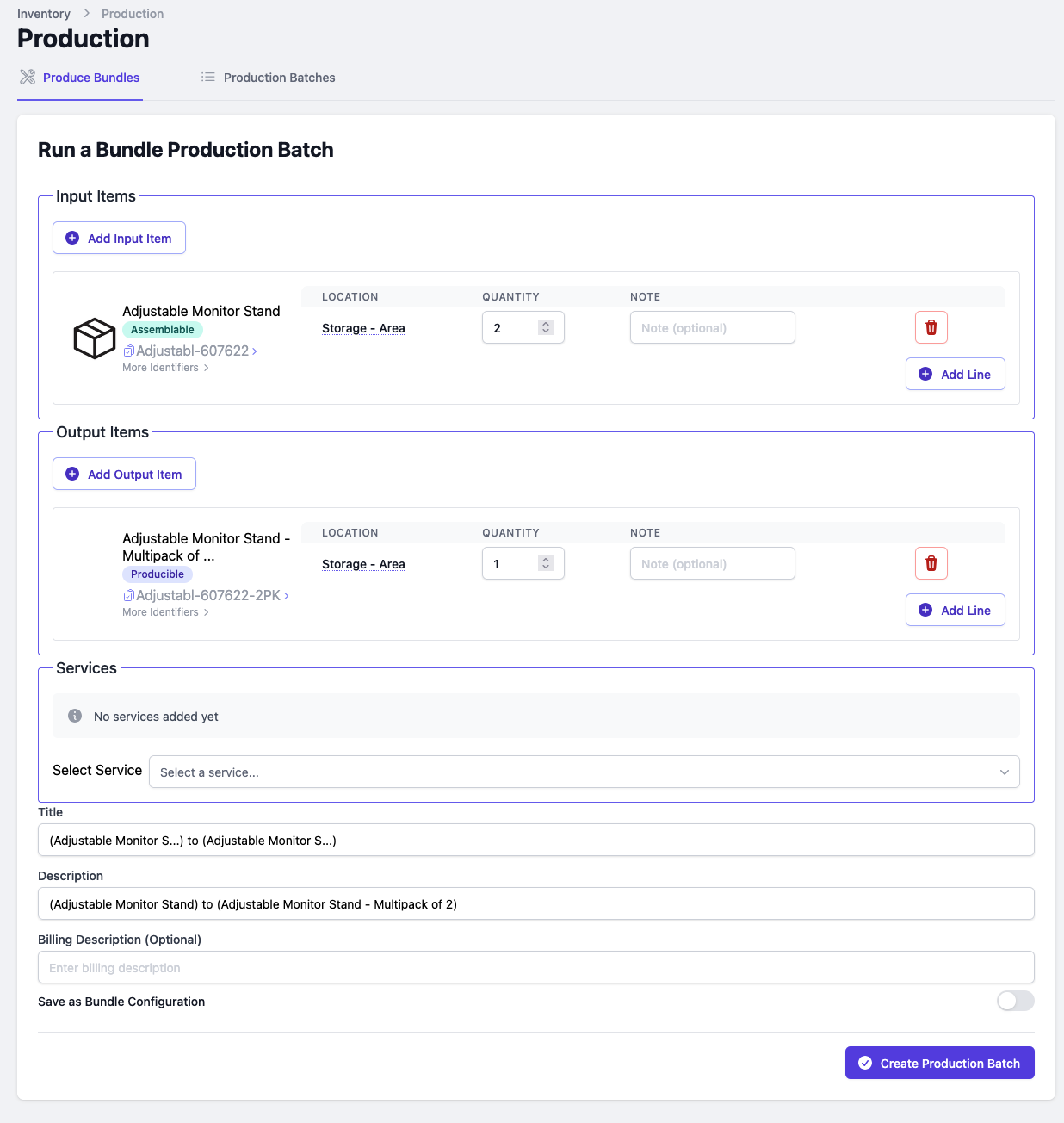
- On the production screen, review the inputs, outputs, and services. You can adjust services, quantities, or add notes before committing.
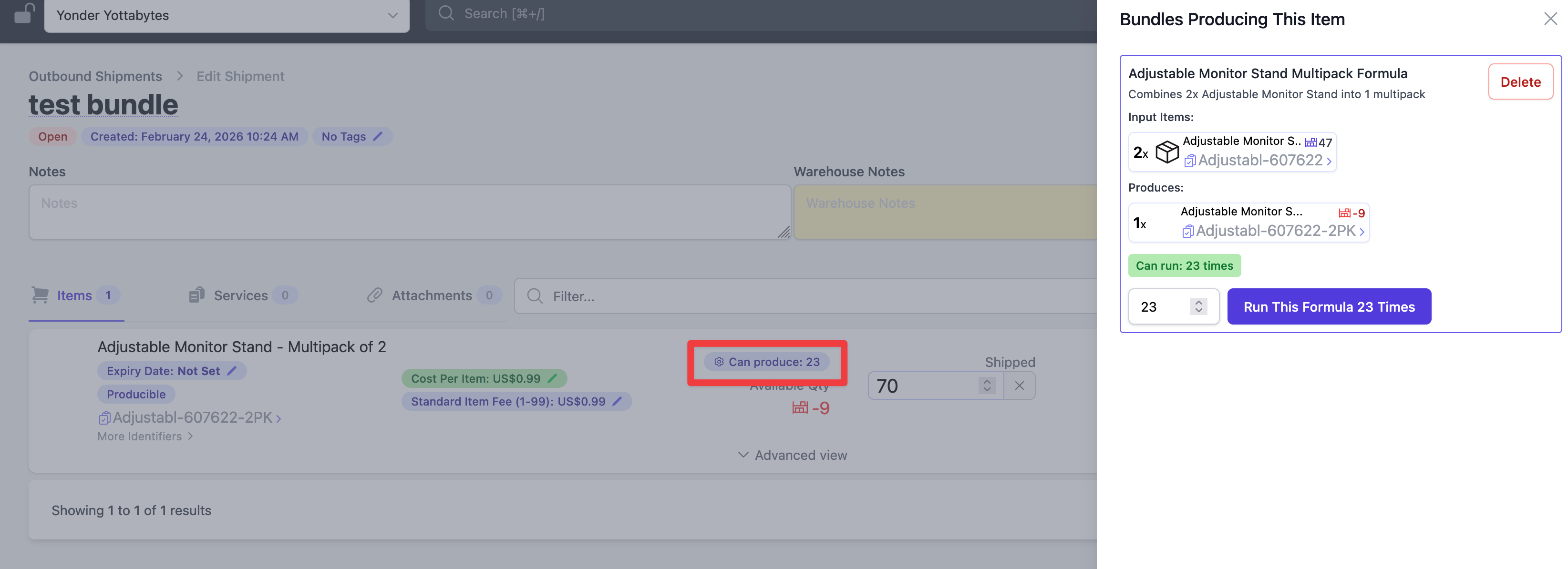
- On the bundle configuration card, enter the number of units to produce and click the "Run {n} Times" button, where {n} is how many runs your current component stock allows.
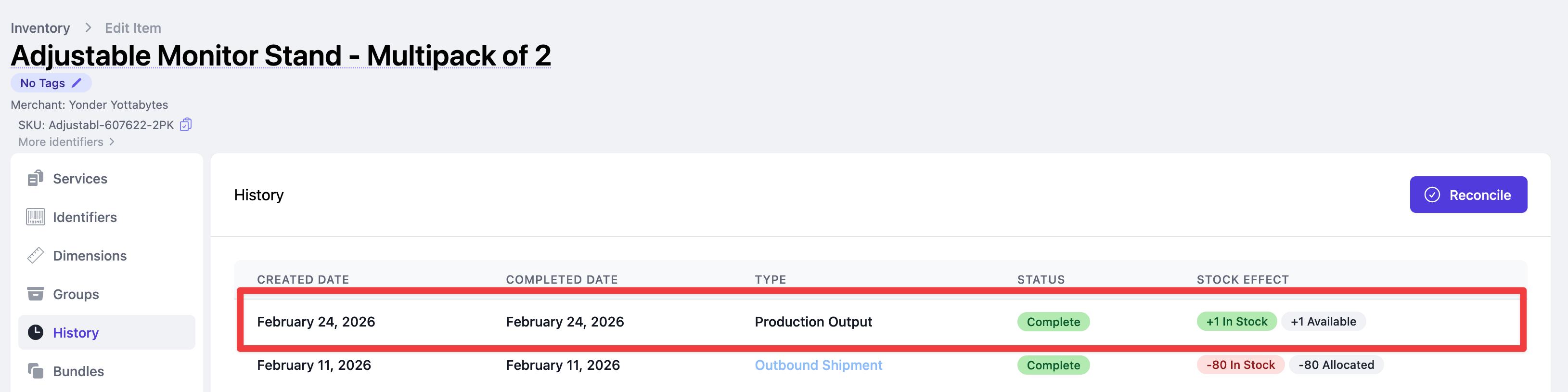
After the batch is created, the produced item's stock will increase and a Production Output event will appear in its history.
Viewing and Deleting Production Batches
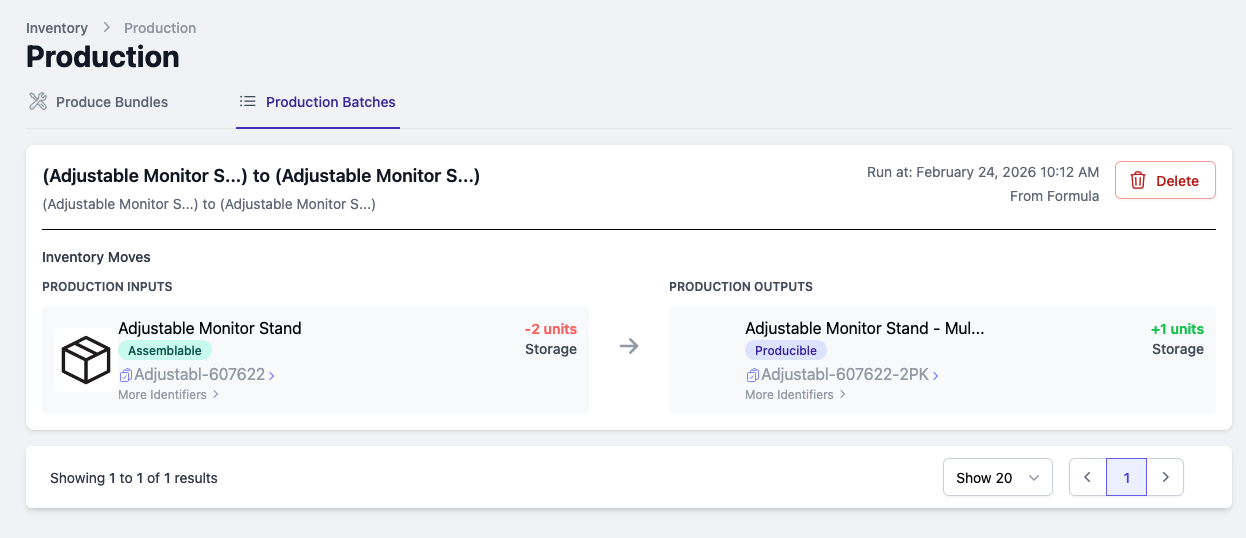
All production runs are recorded on the Production Batches tab under Inventory > Production. Each batch shows the inventory moves: which items were consumed and which were produced.
To undo a production batch (for example, if it was created by mistake), click Delete on the batch. This removes the record and reverses the stock change.
How Bundles Affect Component History
When a bundle production is run, each component consumed will show a Production Input event in its history, reflecting the quantity deducted from stock.

Running a Production from a Shipment
When working on a shipment, any item that has a bundle configuration will display a Can produce: X badge on its row, showing how many units can currently be produced. Clicking the badge opens the bundle production panel directly, so you can run a production batch without leaving the shipment.
Running a One-Off Production
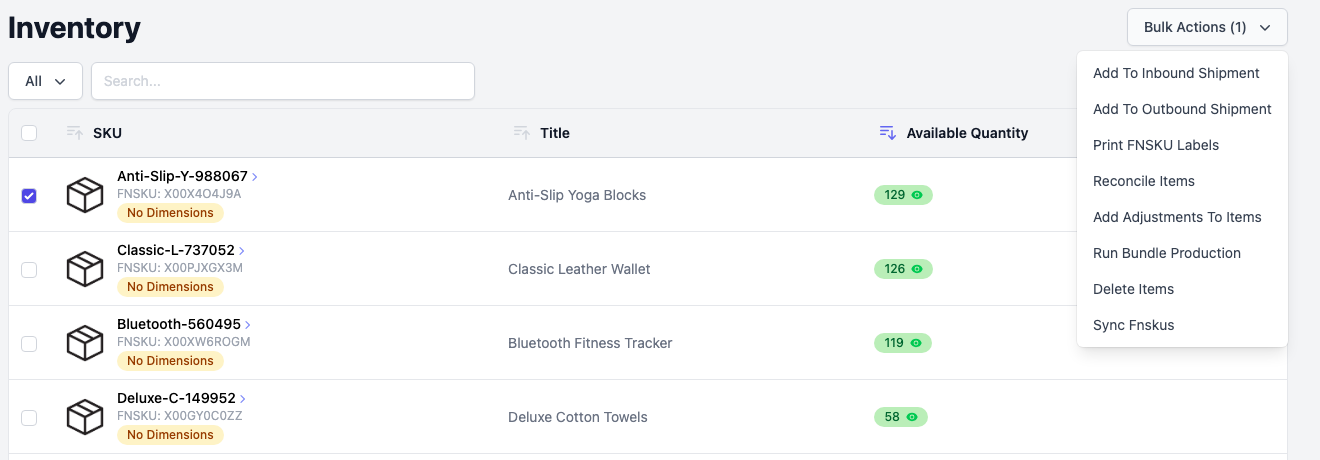
For ad-hoc productions that you don't want to save as a reusable configuration, you can run a one-off bundle production directly from the Inventory list.
- From the Inventory list, select the items you want to include in the production.
- Open Bulk Actions and select Run Bundle Production.
- Manually set the input items, output items, quantities, and any services on the production form.
- Click Create Production Batch. To save this as a reusable configuration for the future, enable Save as Bundle Configuration before creating.
Billing for Bundle Productions
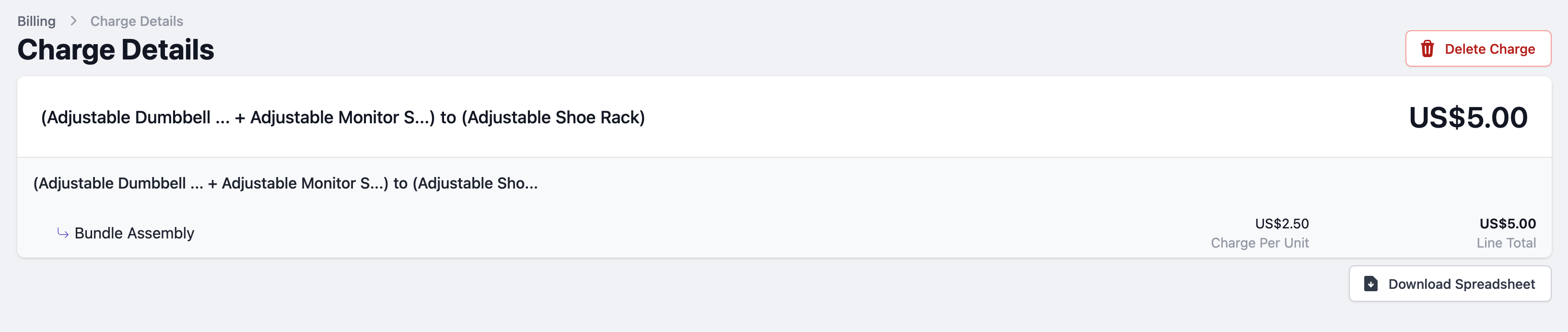
Any services attached to a bundle production will appear as line items in the client's billing cycle, showing the service name, charge per unit, and total charge based on the number of units produced.