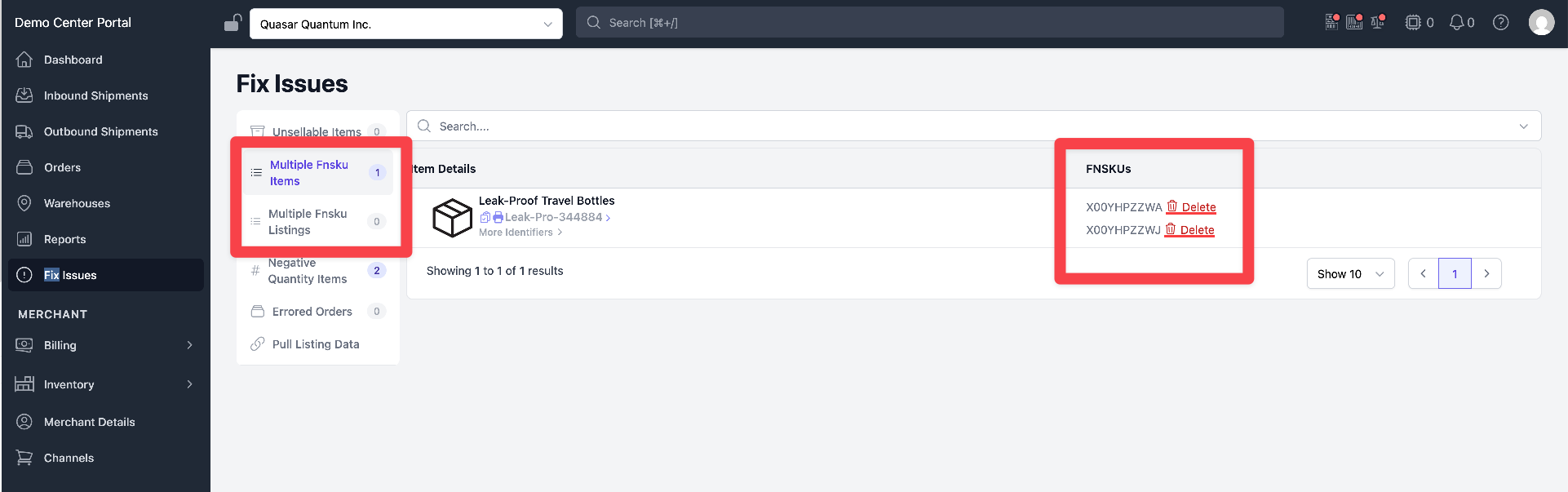
Fix Multiple FNSKU Items
When an Item Has Multiple FNSKUs
Amazon occasionally changes the FNSKU for an existing product. When that happens, PrepBusiness brings in the new FNSKU but the previous one stays attached to the item, so the item ends up with more than one FNSKU. This can make it unclear which FNSKU to use, prevent automatic label printing, and cause the scanner to return multiple possible matches during outbound processing. The Multiple Fnsku Items tab on the Fix Issues page finds these items and lets you remove the incorrect FNSKUs.
Multiple FNSKU Items
- Select Fix Issues in the left sidebar.
- Select the Multiple Fnsku Items tab. The count next to the tab shows how many items currently have more than one FNSKU.
- Each row lists the item on the left and every FNSKU assigned to it in the FNSKUs column, with a Delete button beside each one.
- Click Delete next to each incorrect FNSKU, leaving only the FNSKU that is currently active for the product in Seller Central. To clear them in bulk instead, use the "Remove FNSKUs Not On Linked Listings" button at the top of the tab.
Which FNSKU to Keep
The FNSKU to keep is the one currently shown for the product in Amazon Seller Central. Once a single FNSKU remains, automatic label printing and FNSKU scanning during outbound match correctly instead of returning multiple possible items.