
Charge a Different Service Rate to Specific Clients
Services are defined once on the Services page, and they are only billed to the clients you add them to. There is no setting that makes a service visible to certain clients only; you control who is charged by choosing where the service is applied. To charge specific clients a different rate (for example, a product category that needs more prep work), create a dedicated service at that rate and add it to those clients' shipments. Only those clients are billed for it, and it appears on their invoice.
Create the Service
- Go to the Services page and select Add Service.
- Give the service a clear name (for example, Extra Prep) and set the charge to the rate you want to bill.
- Select Create Service to save it.
Add the Service to a Client's Shipment in Bulk
Add the service only to the shipments of the clients who should be charged. Using "Apply Services To All Products" applies it to every item in that shipment at once.
- Open the outbound shipment for the client you want to charge.
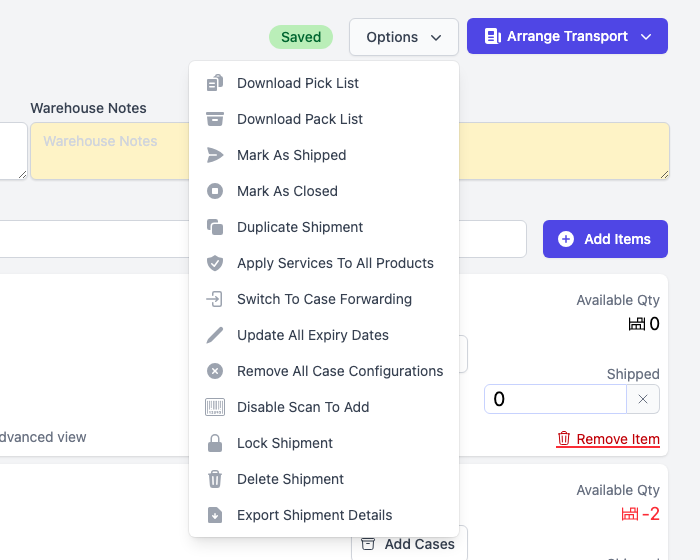
- Click Options in the top right, then select "Apply Services To All Products".
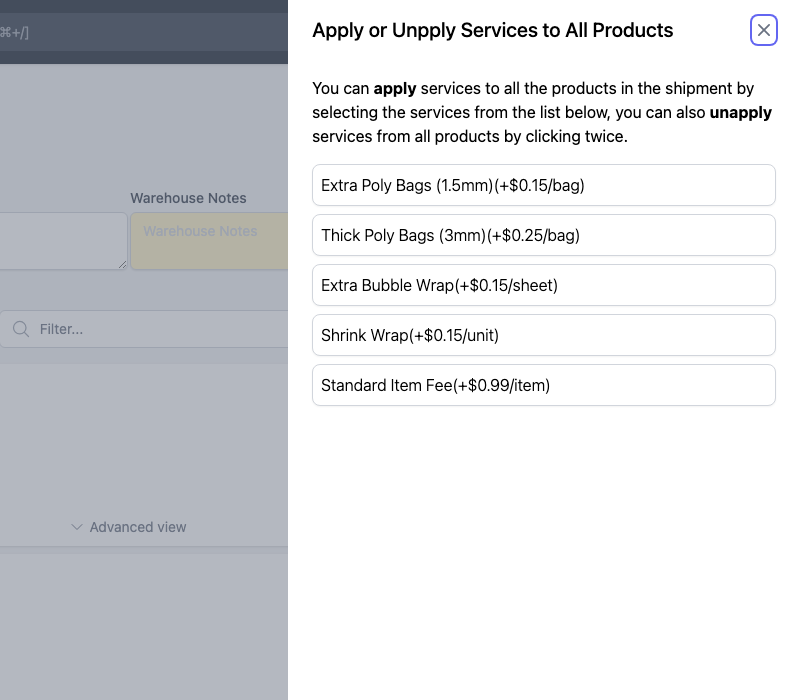
- The panel lists every item service you have set up. Click the service you created to apply it to all the products in the shipment. Clicking it a second time unapplies it.
- Click "Update Services". The service is applied to every item in the shipment and appears on that client’s invoice. To also save it onto the inventory items themselves so it applies to future shipments, use "Update and Save Services to All Items" instead.
Related
To apply a flat fee or discount across every unit for a client (rather than a specific service), use the Per Item Adjustment field on the client’s Merchant Details page. See Per Item Adjustment for Client-Specific Pricing.