
Automatic Tax on Invoices
PrepBusiness integrates with Stripe Tax to automatically calculate sales tax, VAT, or GST on your invoices. This guide walks through the setup process.
Prerequisites
Before enabling automatic tax on invoices, you need to configure tax settings in your Stripe account.
Step 1: Configure Stripe Tax Settings
- Log into your Stripe Dashboard.
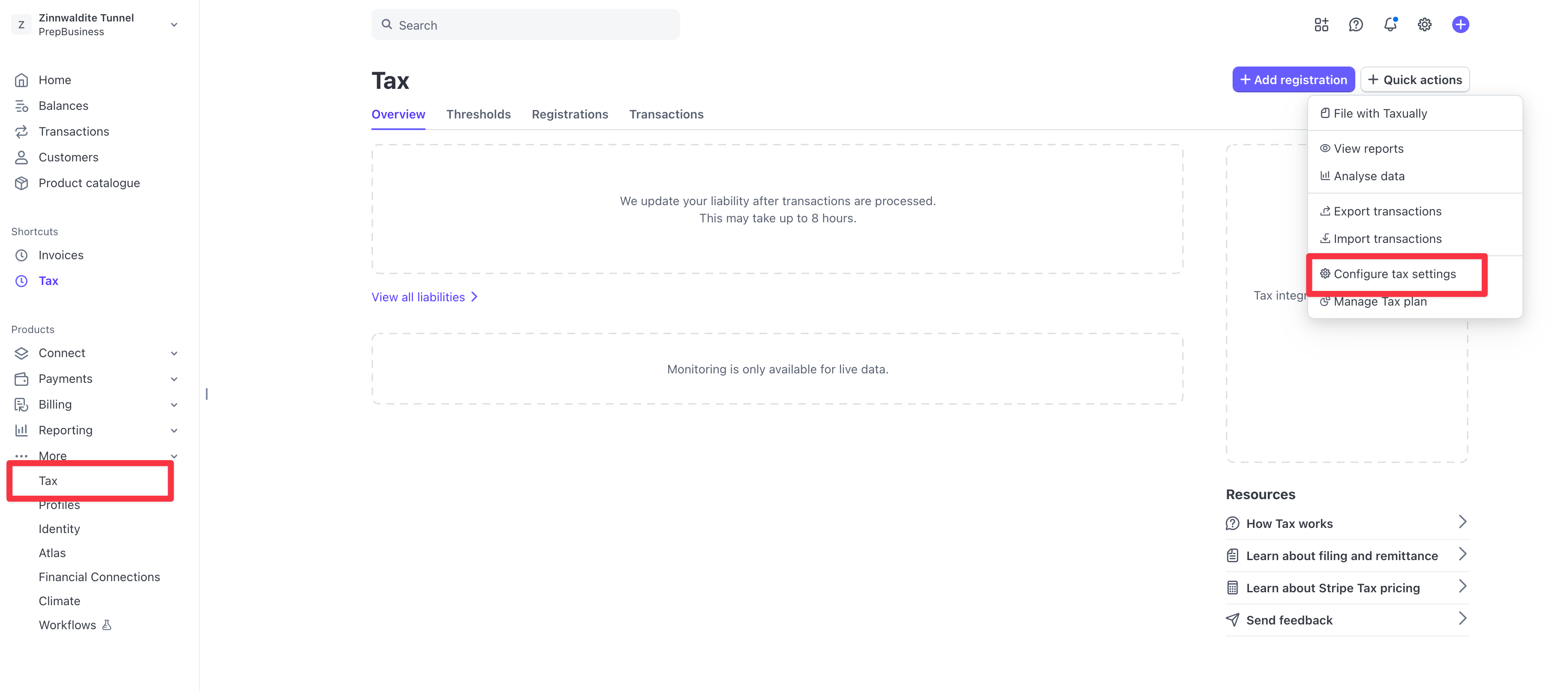
- In the left sidebar, click Tax (under the "More" section).
- Click Quick actions in the top right, then select Configure tax settings.
Step 2: Set Your Tax Configuration
In the tax settings, configure the following:
- Origin address: Set your business location.
- Preset tax category: Select a default category (e.g., "General - Services") for products without a specific tax code.
- Taxes on shipping: Choose how shipping should be taxed.
- Include tax in prices: Select whether prices shown include tax.
Step 3: Ensure Customer Addresses Are Set
For Stripe to calculate tax correctly, each customer must have an address saved in Stripe. You can add addresses when creating customers or update existing customers in your Stripe Dashboard.
Enabling Tax on an Invoice
Once Stripe Tax is configured, you can enable automatic tax on individual invoices in PrepBusiness:
- Create a draft invoice for your client.
- Expand the Stripe Automatic Tax Options section.
- Set Automatic Tax to Enabled.
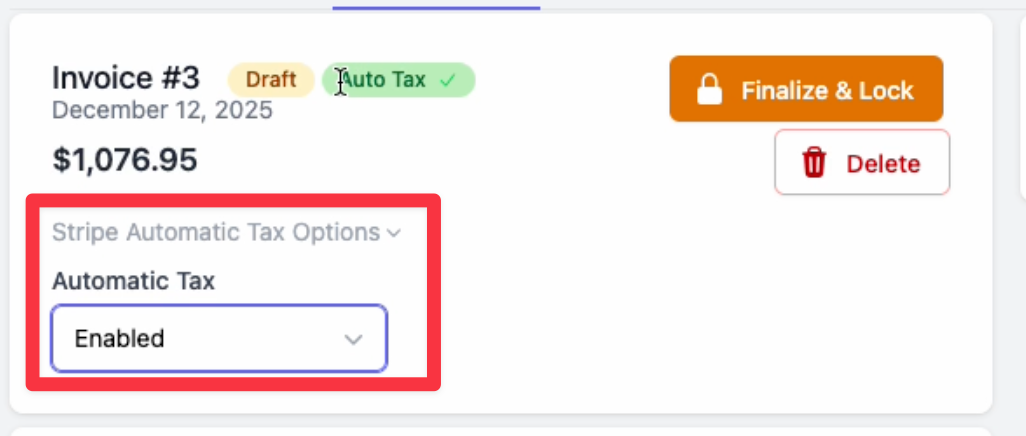
When enabled, the invoice will display an "Auto Tax" badge, and Stripe will calculate the appropriate tax based on your configuration and the customer's location.