
Troubleshooting Label Printing Issues
If you are encountering issues with printing labels automatically, please perform the following troubleshooting steps first:
1. Ensure AZLabels is running
If you have not set up AZLabels yet, please refer to the general support article on Printing Labels. If it has been installed already, ensure it's running by checking for the AZLabels icon in your system tray on the bottom right corner on Windows systems or the top right corner on Macs.
2. Download the latest update
If it's been over a month since you last installed AZLabels, download the latest update from the Printing Labels page. It's possible your issue has already been resolved in the latest version.
3. Ensure no conflicting software is running
When we send data from PrepBusiness to AZLabels, sometimes there is similar software that can conflict with the connection. If you are running ShipStation or other automatic label printing tools, please ensure those are closed before using AZLabels.
4. Grant Chrome Local Network Access
Chrome now requires explicit permission for websites to communicate with apps on your device. If these permissions are not granted, PrepBusiness will not be able to connect to AZLabels.
When you first use the printing feature, Chrome may show a prompt asking if PrepBusiness can "Access other apps and services on this device". Click Allow to grant access.
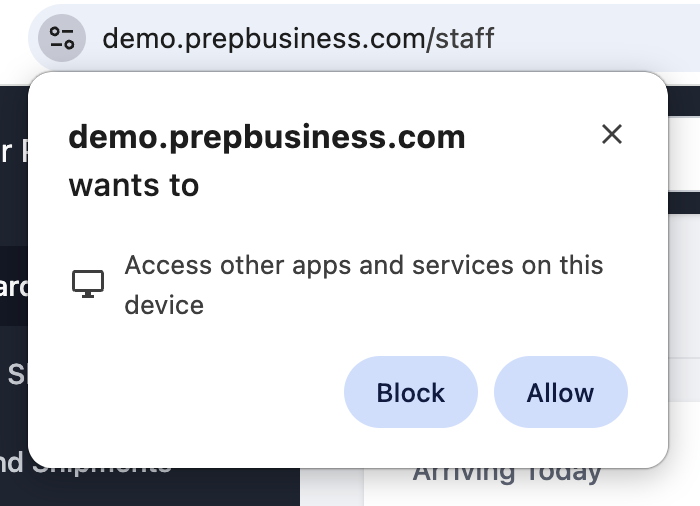
If you missed this prompt or previously blocked it, you can grant the permissions manually:
- Click the icon to the left of the URL bar in Chrome (on the PrepBusiness site)
- Ensure that Local network and Apps on device are both toggled on
- Refresh the page
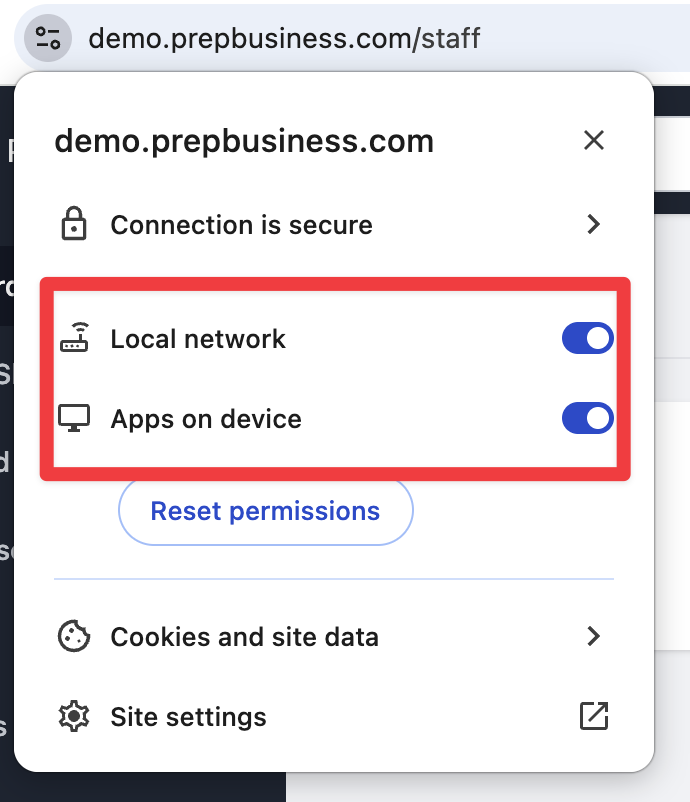
5. Ensure that PrepBusiness has permission to print
When we request a label print from PrepBusiness, we first need permission to use the AZLabels software on your device.
If you are having issues, it's possible the permissions have been disabled for the PrepBusiness site. You can check the permissions by clicking the AZLabels tray icon, then clicking Advanced > Site Manager.
In the window that opens up, you should see AZLabels (AZLabels) in the Allowed tab, and the Blocked tab should be empty (or at least only contain items you want to block):
6. Send us the debug logs
First, perform the action you are having problems with so that everything can be logged by the system.
Next, get the local browser logs from the browser by clicking the View menu in your Top Bar, then goto Developer -> Javascript Console. You should see a window open in the bottom.
To save the console logs, right click on the log and click the Save As button.
Then to get the debugging logs for AZLabels, click the tray icon, then go to Advanced -> Diagnostics -> View Logs.
Note that on a Windows machine, you can find the AZLabels icon at the bottom right of your computer screen.
Click the blue link at the top left of the screen that opens:
Then, send the file named "debug.log" to the support team.